What are the maximum no of sessions per user in SAP?
This is the maximum no of windows which you can open in SAP for that system.
By default the value is 6. So a user can open 6 sessions in 4.7x.
You set this values in rdisp/max_alt_modes parameter.
You can change this parameter using RZ10 in instance profile and use extended maintenance for changing this.
Mos of the companies restrict this no of sessions since they can cause unecessary load..
Showing posts with label Basis Tips. Show all posts
Showing posts with label Basis Tips. Show all posts
Sunday, January 11, 2009

Friday, July 25, 2008
Different types of Locks in SAP
Why object locks?
The locks are used in sap to prevent concomitant change of an object by two developer.
The
enque work process manages the locking system. The lock entries for data to be
processed in lock table which is maintained in main memory.
Various Lock Modes in SAP
Shared Lock (S):
Several
users can access the locked data at the same time in display mode.
Requests for further shared locks are accepted, even if they are from
other users. Exclusive locks are rejected.
Exclusive lock (E):
The
locked data can be displayed or edited by one user only. Requests for
either another exclusive lock or a shared lock are rejected.
Optimistic Lock (O):
An optimistic lock
can be set if the data is displayed in change mode and the lock behaves
like a shared lock if there are access collisions. But if the data is
changed, the optimistic lock converts to an exclusive lock. 0ptimistic
locks on the object then become invalidated. It can therefore be
possible that the conversion fails, if beforehand another optimistic
lock was converted. In such cases the use of optimistic locks is only
beneficial, if the probability that the data will NOT be changed is
high.
Exclusive but not cumulative lock (X):
Exclusive but not cumulative
locks can only be requested by the same transaction once only. All
further lock requests are rejected.
The locks are used in sap to prevent concomitant change of an object by two developer.
The
enque work process manages the locking system. The lock entries for data to be
processed in lock table which is maintained in main memory.
Various Lock Modes in SAP
Shared Lock (S):
Several
users can access the locked data at the same time in display mode.
Requests for further shared locks are accepted, even if they are from
other users. Exclusive locks are rejected.
Exclusive lock (E):
The
locked data can be displayed or edited by one user only. Requests for
either another exclusive lock or a shared lock are rejected.
Optimistic Lock (O):
An optimistic lock
can be set if the data is displayed in change mode and the lock behaves
like a shared lock if there are access collisions. But if the data is
changed, the optimistic lock converts to an exclusive lock. 0ptimistic
locks on the object then become invalidated. It can therefore be
possible that the conversion fails, if beforehand another optimistic
lock was converted. In such cases the use of optimistic locks is only
beneficial, if the probability that the data will NOT be changed is
high.
Exclusive but not cumulative lock (X):
Exclusive but not cumulative
locks can only be requested by the same transaction once only. All
further lock requests are rejected.
Tuesday, January 1, 2008
How to exclude a table in client copy
If you want to exclude a table x from copying in client copy run report RSCCEXPT
Goto transaction SA38 , enter the report name and execute. You will see the output screen as
Enter the table you want to exclude and save it
Goto transaction SA38 , enter the report name and execute. You will see the output screen as

Enter the table you want to exclude and save it
Monday, December 31, 2007
How to execute and External OS command in SAP
Use transaction SA38 to run the following report RSBDCOS0
Then enter the command you want to execute. In this example i am using command DIR

Then press enter key , you will see the output as

Then enter the command you want to execute. In this example i am using command DIR

Then press enter key , you will see the output as

Friday, December 28, 2007
How the check the work process at os level in UNIX
Use these commands to check the work process and other SAP process at os level in unix
To check all the work processes:
ps -ef| grep dw
To check the sap os collector
ps -ef | grep sapos
To check the message server
ps -ef| grep ms
To learn more about PS command visit here
To check all the work processes:
ps -ef
To check the sap os collector
ps -ef | grep sapos
To check the message server
ps -ef
To learn more about PS command visit here
Thursday, December 27, 2007
How to find sap transaction codes
Goto transction search_sap_menu enter the context or the purpose of the t-code like profile, or user, or  You will see the out put as


You will see the out put as
Wednesday, December 26, 2007
How to import transport requests at OS level in SAP
Import are done by administrators not developers. While importing the request at OS level (i.e. not using STMS), the administrator import requests from buffer of the SAP System into the target system. The administrator has to login into the operating system of a host in the target system as the "owner" of the system adm. The requests can be imported at the OS level by executing following commands from following directory.
(Windows): \\$(SAPTRANSHOST)\sapmnt\trans\bin
(UNIX): /usr/sap/trans/bin
Run the following commands
This command in the source system
tp addtobuffer
This command in the target system a
tp import <> u
Here in the second command parameter x means (substitute for different values):
0:
allow another import at the correct location. Allows for import out of sequence.
1: Import request if it is already imported or not
2: Overwrite the originals.
3: Overwrite System-Specific Objects
5:
6: Overwrite objects in unconfirmed repairs
8: Overwrite objects in open repairs
9: Ignore that target system is locked for this type of transports
can be DEV, QAS or PRD
Run the following commands
This command in the source system
tp addtobuffer
This command in the target system a
Here in the second command parameter x means (substitute for different values):
allow another import at the correct location. Allows for import out of sequence.
2: Overwrite the originals.
3: Overwrite System-Specific Objects
5:
import into consolidation system.
8: Overwrite objects in open repairs
9: Ignore that target system is locked for this type of transports
Monday, December 24, 2007
How to Reset Different Buffers in Sap
You can reset the buffers using following commands
Just run the following in SAP command field.
Note: Resetting of the buffers could change the performance of the entire system
/$DYNP - To reset the screen buffer of the application server
/$SYNC - This command resets the buffers of the application server
/$CUA - This resets the CUA buffer of the application server
/$TAB - This resets the TABLE buffers of the application server
/$NAM - To reset the nametab buffer of the application server
Just run the following in SAP command field.
Note: Resetting of the buffers could change the performance of the entire system
/$DYNP - To reset the screen buffer of the application server
/$SYNC - This command resets the buffers of the application server
/$CUA - This resets the CUA buffer of the application server
/$TAB - This resets the TABLE buffers of the application server
/$NAM - To reset the nametab buffer of the application server
Sunday, December 23, 2007
How to find an Operation mode Switch
How do you find that an operation mode switch occurred? There are many ways
1) Go to sm50. If the no of dialog work processes or background work processes changes then a operation mode switch took place.
2) Go to transaction sm63. Here you can see the time when the operation mode is set. You can guess when the operation mode switch occurs.
3) Go to transaction RZ04, here you can see the list of operation modes and their time. You can guess that from here
4) Go to transaction rz03 , here you can see the current operation mode in which the server is running.
5) Call transaction Code sm62. Then view system events. If there is an event called SAP_OPMODE_SWITCH then operation mode switch occurred at that time. If you click on activity log you can see the time and date when the event was triggered. It is time and date of operation mode switch
1) Go to sm50. If the no of dialog work processes or background work processes changes then a operation mode switch took place.
2) Go to transaction sm63. Here you can see the time when the operation mode is set. You can guess when the operation mode switch occurs.
3) Go to transaction RZ04, here you can see the list of operation modes and their time. You can guess that from here
4) Go to transaction rz03 , here you can see the current operation mode in which the server is running.
5) Call transaction Code sm62. Then view system events. If there is an event called SAP_OPMODE_SWITCH then operation mode switch occurred at that time. If you click on activity log you can see the time and date when the event was triggered. It is time and date of operation mode switch
How to Lock or Unlock a client In sap
To lock or unlock a client in R/3 System, run the following function modules in transaction se37
1. SSCR_LOCK_CLIENT ( to lock the client)
2. SSCR_UNLOCK_CLIENT (to unlock the client)
Run these functions with a client input which is to be locked/unlocked. This function set flag '' Client is locked temporarily for client copy" in client maintenance menu.The client will be available for users DDIC and SAP*. If any other user tries to login, system gives message that ' Client locked temporarily'.
To unlock the client
1. Run transaction SE37
2. Enter the function module as SSCR_UNLOCK_CLIENT
3. press F8 or test run (single run).
4. Specify the client and execute(F8).
Follow similar procedure for locking the client
1. SSCR_LOCK_CLIENT ( to lock the client)
2. SSCR_UNLOCK_CLIENT (to unlock the client)
Run these functions with a client input which is to be locked/unlocked. This function set flag '' Client is locked temporarily for client copy" in client maintenance menu.The client will be available for users DDIC and SAP*. If any other user tries to login, system gives message that ' Client locked temporarily'.
To unlock the client
1. Run transaction SE37
2. Enter the function module as SSCR_UNLOCK_CLIENT
3. press F8 or test run (single run).
4. Specify the client and execute(F8).
Follow similar procedure for locking the client
Thursday, December 20, 2007
how you can assign a Background work process as a Class A Background Work process
Go to transaction code rz04 then button Operation Modes / Instances. Then select the Operation mode and double click on it. Then you will see a window with no of Background work process. In the field named Class A increase the no to 1 (use the + button to increase that). Default value is zero. Then click on the save button to save the configuration

Tuesday, December 18, 2007
How to Determine the optimum No of Work Process
IF you want to find out the optimum no of work processes there are two ways
1) Goto transaction sm50 and click CPU as shown in figure

or press ctrl+shift+f6 . You will see the cpu total times of the work processes . If you have WPs whose CPU time is very less (Say less than 0:20), you can decrease the number of WPS of that type . If the CPU time of certain type of work process is high, you may decide to increase their no.
2) Another method is to go for transaction Al12 then click all servers as shown

Then you will see the total no of requests for each work process. If all the dialog work process have large no of requests then you can add additional dia wps. If you have less dia wps with less requests , then you can decrease the no of dia wps.
This method is useful in deciding which operation mode to be used at a particular time.
How to send popup message to a specific user in sap
How do you do that? By running a function module!!
SM02 sends messages to all users, not a specific one
So use function module TH_POPUP
goto Transaction code SE37 enter the function module name & test run it
the the resulting screen is shown below, type the details and execute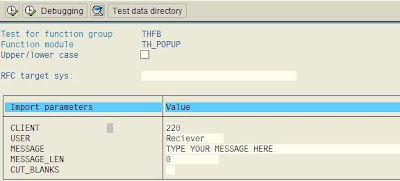
The the user will see message like this ( System name is blurred for privacy reasons)
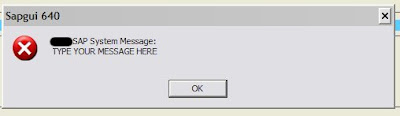
The user must be logged into the system to receive the message
SM02 sends messages to all users, not a specific one
So use function module TH_POPUP
goto Transaction code SE37 enter the function module name & test run it
the the resulting screen is shown below, type the details and execute

The the user will see message like this ( System name is blurred for privacy reasons)

The user must be logged into the system to receive the message
Sunday, December 16, 2007
Delete multiple spool requests
Deleting multiple spool request with sp01 is a cumbersome process and one might get Time-Out if it exceed the online time limit specify for application server. Use programs RSPO0041 or RSPO1041 when you have a large no of old spool requests to be deleted
Friday, December 14, 2007
How do you find the size of a client
Goto transaction SCCL
give the source client (which you have to find size)
and the target client
then check test run
at the end you will see the size of client
give the source client (which you have to find size)
and the target client
then check test run
at the end you will see the size of client
Can you manually switch and operation mode in sap
Yes! You can trigger an operation mode switch from a program that you have written yourself using a function module (RZL_PERFORM_BA_SWITCH).
How to view Locked Transaction codes
Goto transaction se11 or se16 and view the table TSTC, the field is CINFO. Enter "A0" as the "HEX01 data element for SYST" starting value and "A9" as the ending value. Instead of doing such cumbersome viewing of table, you can run ABAP report rsauditc to view locked transactions. Use t-code sm01 to lock/unlock the codes
Wednesday, December 12, 2007
Changing the Title of SAP Transaction
Sometimes, internal user or customer might request you to change the Title of the SAP Transaction code to a more meaningful one.
The steps are as follows:
Goto tcode SE63 . On the top left Menu of the screen - Click Translation ---> Short texts - --> Transactions
For example, assuming you want to change the title of the t-code su10 from user maintenance: Mass changes Initial Screen to Mass User changes . On the first screen, fill in the following information:
Transaction code - SU10
Source Language - English
Target Language - English
To change the Title, click the Edit button. On the second line (the one in dark yellow), type in the Title (For e.g. Mass User changes) you want for the transaction code. Click the Save button

Now, call up the transaction code /nSU10 again and you should be able to view the new Title.
Please note that it works for most of the Transaction codes. The t-code is available from from version 4.6x.
Subscribe to:
Posts (Atom)
Showing posts with label Basis Tips. Show all posts
Showing posts with label Basis Tips. Show all posts
Sunday, January 11, 2009
Maximum Number of Session Per User in SAP
What are the maximum no of sessions per user in SAP?
This is the maximum no of windows which you can open in SAP for that system.
By default the value is 6. So a user can open 6 sessions in 4.7x.
You set this values in rdisp/max_alt_modes parameter.
You can change this parameter using RZ10 in instance profile and use extended maintenance for changing this.
Mos of the companies restrict this no of sessions since they can cause unecessary load..
This is the maximum no of windows which you can open in SAP for that system.
By default the value is 6. So a user can open 6 sessions in 4.7x.
You set this values in rdisp/max_alt_modes parameter.
You can change this parameter using RZ10 in instance profile and use extended maintenance for changing this.
Mos of the companies restrict this no of sessions since they can cause unecessary load..
Friday, July 25, 2008
Different types of Locks in SAP
Why object locks?
The locks are used in sap to prevent concomitant change of an object by two developer.
The
enque work process manages the locking system. The lock entries for data to be
processed in lock table which is maintained in main memory.
Various Lock Modes in SAP
Shared Lock (S):
Several
users can access the locked data at the same time in display mode.
Requests for further shared locks are accepted, even if they are from
other users. Exclusive locks are rejected.
Exclusive lock (E):
The
locked data can be displayed or edited by one user only. Requests for
either another exclusive lock or a shared lock are rejected.
Optimistic Lock (O):
An optimistic lock
can be set if the data is displayed in change mode and the lock behaves
like a shared lock if there are access collisions. But if the data is
changed, the optimistic lock converts to an exclusive lock. 0ptimistic
locks on the object then become invalidated. It can therefore be
possible that the conversion fails, if beforehand another optimistic
lock was converted. In such cases the use of optimistic locks is only
beneficial, if the probability that the data will NOT be changed is
high.
Exclusive but not cumulative lock (X):
Exclusive but not cumulative
locks can only be requested by the same transaction once only. All
further lock requests are rejected.
The locks are used in sap to prevent concomitant change of an object by two developer.
The
enque work process manages the locking system. The lock entries for data to be
processed in lock table which is maintained in main memory.
Various Lock Modes in SAP
Shared Lock (S):
Several
users can access the locked data at the same time in display mode.
Requests for further shared locks are accepted, even if they are from
other users. Exclusive locks are rejected.
Exclusive lock (E):
The
locked data can be displayed or edited by one user only. Requests for
either another exclusive lock or a shared lock are rejected.
Optimistic Lock (O):
An optimistic lock
can be set if the data is displayed in change mode and the lock behaves
like a shared lock if there are access collisions. But if the data is
changed, the optimistic lock converts to an exclusive lock. 0ptimistic
locks on the object then become invalidated. It can therefore be
possible that the conversion fails, if beforehand another optimistic
lock was converted. In such cases the use of optimistic locks is only
beneficial, if the probability that the data will NOT be changed is
high.
Exclusive but not cumulative lock (X):
Exclusive but not cumulative
locks can only be requested by the same transaction once only. All
further lock requests are rejected.
Tuesday, January 1, 2008
How to exclude a table in client copy
If you want to exclude a table x from copying in client copy run report RSCCEXPT
Goto transaction SA38 , enter the report name and execute. You will see the output screen as
Enter the table you want to exclude and save it
Goto transaction SA38 , enter the report name and execute. You will see the output screen as
Enter the table you want to exclude and save it
Monday, December 31, 2007
How to execute and External OS command in SAP
Use transaction SA38 to run the following report RSBDCOS0
Then enter the command you want to execute. In this example i am using command DIR
Then press enter key , you will see the output as
Then enter the command you want to execute. In this example i am using command DIR
Then press enter key , you will see the output as
Friday, December 28, 2007
How the check the work process at os level in UNIX
Use these commands to check the work process and other SAP process at os level in unix
To check all the work processes:
ps -ef| grep dw
To check the sap os collector
ps -ef | grep sapos
To check the message server
ps -ef| grep ms
To learn more about PS command visit here
To check all the work processes:
ps -ef
To check the sap os collector
ps -ef | grep sapos
To check the message server
ps -ef
To learn more about PS command visit here
Thursday, December 27, 2007
How to find sap transaction codes
Goto transction search_sap_menu enter the context or the purpose of the t-code like profile, or user, or You will see the out put as
You will see the out put as
Wednesday, December 26, 2007
How to import transport requests at OS level in SAP
Import are done by administrators not developers. While importing the request at OS level (i.e. not using STMS), the administrator import requests from buffer of the SAP System into the target system. The administrator has to login into the operating system of a host in the target system as the "owner" of the system adm. The requests can be imported at the OS level by executing following commands from following directory.
(Windows): \\$(SAPTRANSHOST)\sapmnt\trans\bin
(UNIX): /usr/sap/trans/bin
Run the following commands
This command in the source system
tp addtobuffer
This command in the target system a
tp import <> u
Here in the second command parameter x means (substitute for different values):
0:
allow another import at the correct location. Allows for import out of sequence.
1: Import request if it is already imported or not
2: Overwrite the originals.
3: Overwrite System-Specific Objects
5:
6: Overwrite objects in unconfirmed repairs
8: Overwrite objects in open repairs
9: Ignore that target system is locked for this type of transports
can be DEV, QAS or PRD
Run the following commands
This command in the source system
tp addtobuffer
This command in the target system a
Here in the second command parameter x means (substitute for different values):
allow another import at the correct location. Allows for import out of sequence.
2: Overwrite the originals.
3: Overwrite System-Specific Objects
5:
import into consolidation system.
8: Overwrite objects in open repairs
9: Ignore that target system is locked for this type of transports
Monday, December 24, 2007
How to Reset Different Buffers in Sap
You can reset the buffers using following commands
Just run the following in SAP command field.
Note: Resetting of the buffers could change the performance of the entire system
/$DYNP - To reset the screen buffer of the application server
/$SYNC - This command resets the buffers of the application server
/$CUA - This resets the CUA buffer of the application server
/$TAB - This resets the TABLE buffers of the application server
/$NAM - To reset the nametab buffer of the application server
Just run the following in SAP command field.
Note: Resetting of the buffers could change the performance of the entire system
/$DYNP - To reset the screen buffer of the application server
/$SYNC - This command resets the buffers of the application server
/$CUA - This resets the CUA buffer of the application server
/$TAB - This resets the TABLE buffers of the application server
/$NAM - To reset the nametab buffer of the application server
Sunday, December 23, 2007
How to find an Operation mode Switch
How do you find that an operation mode switch occurred? There are many ways
1) Go to sm50. If the no of dialog work processes or background work processes changes then a operation mode switch took place.
2) Go to transaction sm63. Here you can see the time when the operation mode is set. You can guess when the operation mode switch occurs.
3) Go to transaction RZ04, here you can see the list of operation modes and their time. You can guess that from here
4) Go to transaction rz03 , here you can see the current operation mode in which the server is running.
5) Call transaction Code sm62. Then view system events. If there is an event called SAP_OPMODE_SWITCH then operation mode switch occurred at that time. If you click on activity log you can see the time and date when the event was triggered. It is time and date of operation mode switch
1) Go to sm50. If the no of dialog work processes or background work processes changes then a operation mode switch took place.
2) Go to transaction sm63. Here you can see the time when the operation mode is set. You can guess when the operation mode switch occurs.
3) Go to transaction RZ04, here you can see the list of operation modes and their time. You can guess that from here
4) Go to transaction rz03 , here you can see the current operation mode in which the server is running.
5) Call transaction Code sm62. Then view system events. If there is an event called SAP_OPMODE_SWITCH then operation mode switch occurred at that time. If you click on activity log you can see the time and date when the event was triggered. It is time and date of operation mode switch
How to Lock or Unlock a client In sap
To lock or unlock a client in R/3 System, run the following function modules in transaction se37
1. SSCR_LOCK_CLIENT ( to lock the client)
2. SSCR_UNLOCK_CLIENT (to unlock the client)
Run these functions with a client input which is to be locked/unlocked. This function set flag '' Client is locked temporarily for client copy" in client maintenance menu.The client will be available for users DDIC and SAP*. If any other user tries to login, system gives message that ' Client locked temporarily'.
To unlock the client
1. Run transaction SE37
2. Enter the function module as SSCR_UNLOCK_CLIENT
3. press F8 or test run (single run).
4. Specify the client and execute(F8).
Follow similar procedure for locking the client
1. SSCR_LOCK_CLIENT ( to lock the client)
2. SSCR_UNLOCK_CLIENT (to unlock the client)
Run these functions with a client input which is to be locked/unlocked. This function set flag '' Client is locked temporarily for client copy" in client maintenance menu.The client will be available for users DDIC and SAP*. If any other user tries to login, system gives message that ' Client locked temporarily'.
To unlock the client
1. Run transaction SE37
2. Enter the function module as SSCR_UNLOCK_CLIENT
3. press F8 or test run (single run).
4. Specify the client and execute(F8).
Follow similar procedure for locking the client
Thursday, December 20, 2007
how you can assign a Background work process as a Class A Background Work process
Go to transaction code rz04 then button Operation Modes / Instances. Then select the Operation mode and double click on it. Then you will see a window with no of Background work process. In the field named Class A increase the no to 1 (use the + button to increase that). Default value is zero. Then click on the save button to save the configuration
Tuesday, December 18, 2007
How to Determine the optimum No of Work Process
IF you want to find out the optimum no of work processes there are two ways
1) Goto transaction sm50 and click CPU as shown in figure
or press ctrl+shift+f6 . You will see the cpu total times of the work processes . If you have WPs whose CPU time is very less (Say less than 0:20), you can decrease the number of WPS of that type . If the CPU time of certain type of work process is high, you may decide to increase their no.
2) Another method is to go for transaction Al12 then click all servers as shown
Then you will see the total no of requests for each work process. If all the dialog work process have large no of requests then you can add additional dia wps. If you have less dia wps with less requests , then you can decrease the no of dia wps.
This method is useful in deciding which operation mode to be used at a particular time.
How to send popup message to a specific user in sap
How do you do that? By running a function module!!
SM02 sends messages to all users, not a specific one
So use function module TH_POPUP
goto Transaction code SE37 enter the function module name & test run it
the the resulting screen is shown below, type the details and execute
The the user will see message like this ( System name is blurred for privacy reasons)
The user must be logged into the system to receive the message
SM02 sends messages to all users, not a specific one
So use function module TH_POPUP
goto Transaction code SE37 enter the function module name & test run it
the the resulting screen is shown below, type the details and execute
The the user will see message like this ( System name is blurred for privacy reasons)
The user must be logged into the system to receive the message
Sunday, December 16, 2007
Delete multiple spool requests
Deleting multiple spool request with sp01 is a cumbersome process and one might get Time-Out if it exceed the online time limit specify for application server. Use programs RSPO0041 or RSPO1041 when you have a large no of old spool requests to be deleted
Friday, December 14, 2007
How do you find the size of a client
Goto transaction SCCL
give the source client (which you have to find size)
and the target client
then check test run
at the end you will see the size of client
give the source client (which you have to find size)
and the target client
then check test run
at the end you will see the size of client
Can you manually switch and operation mode in sap
Yes! You can trigger an operation mode switch from a program that you have written yourself using a function module (RZL_PERFORM_BA_SWITCH).
How to view Locked Transaction codes
Goto transaction se11 or se16 and view the table TSTC, the field is CINFO. Enter "A0" as the "HEX01 data element for SYST" starting value and "A9" as the ending value. Instead of doing such cumbersome viewing of table, you can run ABAP report rsauditc to view locked transactions. Use t-code sm01 to lock/unlock the codes
Wednesday, December 12, 2007
Changing the Title of SAP Transaction
Sometimes, internal user or customer might request you to change the Title of the SAP Transaction code to a more meaningful one.
The steps are as follows:
Goto tcode SE63 . On the top left Menu of the screen - Click Translation ---> Short texts - --> Transactions
For example, assuming you want to change the title of the t-code su10 from user maintenance: Mass changes Initial Screen to Mass User changes . On the first screen, fill in the following information:
Transaction code - SU10
Source Language - English
Target Language - English
To change the Title, click the Edit button. On the second line (the one in dark yellow), type in the Title (For e.g. Mass User changes) you want for the transaction code. Click the Save button
Now, call up the transaction code /nSU10 again and you should be able to view the new Title.
Please note that it works for most of the Transaction codes. The t-code is available from from version 4.6x.
Subscribe to:
Posts (Atom)